Category: Uncategorized

  • New Home, New Decoration


    Hi,

    As you may have seen, I moved away my blog from BlogSpot to a self hosted WordPress blog. The main objective was to use my own domain http://www.leonardofischer.com, as well as to have more freedom to customize the blog. And as the old BlogSpot template doesn’t work with WordPress, I needed to choose a new template…

    No, I was kidding. I could choose a template made by anyone, but I opted to create one by myself. And that was what I did, a WordPress template. This one you is looking at right now.

    I still believe that I’m not a good web-designer, but making this theme was a very good exercise: I need to deal with HTML, CSS, and the WordPress API. I am even thinking about writing my own WordPress Theming Introduction Guide, but I will think about that latter.

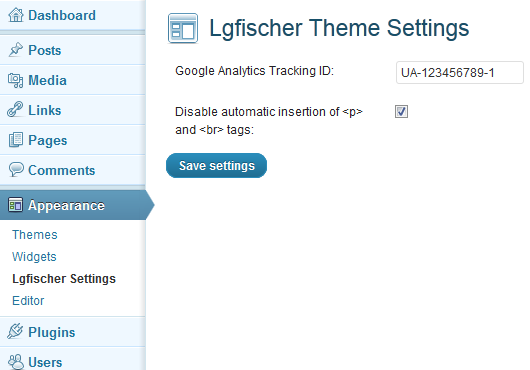
    I am happy that I could make this theme work, without making it look like $#@%. I added some options to it out of the box, like Google Analytics support and a option to disable the automatic insertion of <p> and <br> tags (I could not find a way to do this on BlogSpot, and WordPress allows it only by hacking the theme you are using). In the theme I’m writing these options could be edited without touching any code: there is a menu for that after enabling this theme. ツ

    Lgfischer Theme Settings

    I am still working on this theme. Particularly, I want to use a responsive design approach to it and add support to widgets (I want to add a “Friends links” area to the sidebar). And maybe a customized 404 page…

    I’m not sure why anyone may want, but I released the source code of this theme on GitHub. If you want, download, modify and use it as you wish. And fell free to add any comments, suggestions or bugs you found in the comment section bellow.

  • Introducing JSS: Java Simple Services

    A few weeks ago, I needed to implement a service. Or a daemon. Or whatever you call a process that you start, and it runs in background until you call it to stop. I found the Java Service Wrapper, but I didn’t like it: it has several OS dependent distributions, and a documentation that you take some time to learn. Other options include some forums recommending some scripts that depend on the operating system that allows you to run a java application in background. No one seems as easy as I thought that it could be.

    So I decided to take the joy of writing my own service wrapper. I called it Java Simple Services. I focused on making it simple, small and only dependent on the JDK. The result is a small set of classes that manages the service for the user, making it relatively easy to start a background process. First, I’ll present how to use it. If you’re interested on how it works, just keep reading.

    The Clock Application Example

    I like the ‘learn by example’ approach, so I will present a very simple clock application. When started, it will run “forever”, or until you give it a signal to stop. At each loop, it will update the last time read. You can think of it as a much more complex process, such as a web server or a database system that should run in background mode. It will serve as an example for the service that I will build using Java Simple Services.

    package com.leonardofischer.jss.test;
    import java.util.Date;
    public class ClockApp {
        public boolean keepRunning = true;
        public String date = "Not executed yet";
        public void run() {
            try {
                while (keepRunning) {
                    date = (new Date()).toString();
                    System.out.println(date);
                    Thread.sleep(1000);
                }
            }
            catch (InterruptedException e) {
                e.printStackTrace();
            }
        }
        public static void main(String[] args) {
            ClockApp clock = new ClockApp();
            clock.run();
        }
    }

    The Service Class: Creating the Clock Service

    I tried to build an API as simple as possible to create services. After some work, I got an API design that requires you to implement only one abstract class and that is it.

    In the Java Simple Services, you need to extend the Service class. Although it has several methods you can override, you only need to know three methods: start(String args[]), stop(String args[]) and parseArgs(String args[]). You can think this way:

    • The start(String args[]) method is the main(String args[]) method of your service. You will put your code here, and you should return from it only after you processing is done or your service must stop;
    • The stop(String args[]) method is where you put the code to stop your application. Although it can take as long as you need, you should use this method to only send a signal to your code in the start(String args[]) method to make it stop running, and then return. Note that this method will be executed in a different thread from the one where start(String args[]) is running, so you may need some synchronization here;
    • Finally, the parseArgs(String args[]) will take your command line arguments and will start, stop and do other things with your service.

    So, here is the code to wrap our clock application in a service:

    package com.leonardofischer.jss.test;
    import com.leonardofischer.jss.Service;
    public class ClockService extends Service {
        ClockApp clock;
        public void start(String[] args) {
            clock = new ClockApp();
            clock.run();
        }
    
        public void stop(String[] args) {
            clock.keepRunning = false;
        }
    
        public static void main(String[] args) {
            ClockService clockService = new ClockService();
            clockService.parseArgs(args);
        }
    }

    Using Java Simple Services and the code above, you have an application that runs in background, can be started, and stopped and so on… Let’s run it:

    $> java com.leonardofischer.jss.test.ClockService
    Usage: java com.leonardofischer.jss.test.ClockService {start|stop|restart|sta
    tus}
    $> java com.leonardofischer.jss.test.ClockService start
    The service started
    $> java com.leonardofischer.jss.test.ClockService start
    The service is already running, or another process is using the port 6400.
    $> java com.leonardofischer.jss.test.ClockService status
    STATUS: the service is running
    $> java com.leonardofischer.jss.test.ClockService restart
    The service stoped
    The service started
    $> java com.leonardofischer.jss.test.ClockService status
    STATUS: the service is running
    $> java com.leonardofischer.jss.test.ClockService stop
    The service stoped
    $> java com.leonardofischer.jss.test.ClockService stop
    The service is not running
    $>

    As you can see, it is very easy to execute, get status and stop the ClockApp in a background process. The commands above are already built into JSS, so all the code you needed was the new ClockService class. But how you can change those generic default messages? How to return the current time using the status command? All that can be changed using service configuration.

    Service Customization

    The code above may be too simple for what you need, so I developed several methods in the service class that, if you override, should allow you to customize your service. I’ll present some methods, but please give a look at the class Documentation, so you can know exactly what you can do here.

    public class ClockService extends Service {
        // same code as above, plus these methods
        public String status(String[] args) {
            return clock.date;
        }
        public void onServiceNotRunning() {
            printErrorMessage("The ClockService is not running, "+
                    "please start it with the 'iniciar' command");
        }
        // new version of the main, with some customization
        public static void main(String[] args) {
            ClockService clockService = new ClockService();
            // 'iniciar' is the portuguese word for 'start'
            clockService.setStartCommand("iniciar");
            // Go to 'How Java Simple Services Work' if you want to know
            // why setting a port here
            clockService.getServiceController().setPort(9876);
            clockService.parseArgs(args);
        }
    }

    And if we run again those commands…

    $> java com.leonardofischer.jss.test.ClockService
    Usage: java com.leonardofischer.jss.test.ClockService {iniciar|stop|restart|s
    tatus}
    $> java com.leonardofischer.jss.test.ClockService start
    Usage: java com.leonardofischer.jss.test.ClockService {iniciar|stop|restart|s
    tatus}
    $> java com.leonardofischer.jss.test.ClockService iniciar
    The service started
    $> java com.leonardofischer.jss.test.ClockService iniciar
    The service is already running, or another process is using the port 9876.
    $> java com.leonardofischer.jss.test.ClockService status
    Wed Jul 11 21:53:51 BRT 2012
    $> java com.leonardofischer.jss.test.ClockService restart
    The service stoped
    The service started
    $> java com.leonardofischer.jss.test.ClockService status
    Wed Jul 11 21:54:19 BRT 2012
    $> java com.leonardofischer.jss.test.ClockService stop
    The service stoped
    $> java com.leonardofischer.jss.test.ClockService stop
    The ClockService is not running, please start it with the 'iniciar' command
    $>

    I did not use here all the possible customization. I only wanted to show you some examples, such as returning the last read time with the status command, changing the command string used to start the service and change the error message if the service is not running.

    Also, there is a ServiceController class that helps on the service execution. There are some customization points here too, but they are more related to the process that will be executed in background. Read carefully the documentation before use these methods, ok?

    How Java Simple Services Work

    This is the advanced topic on Java Simple Services, so not everyone needs to read from now on to use it. But I invite you to continue reading.

    First of all, your service will run in a different process than the one that you executed it with the start command line parameter. If you use the ‘run’ parameter, then it will run in this process, but with start, another process will be started with the ‘run’ parameter, and the process that you started will finish normally. The configuration of the ServiceController class serves to customize how the JVM will be executed here.

    When you execute the run parameter, the ServiceController also creates a thread that listens for future commands. It uses the Java Socket API, and that is why you can set a port to listen to. This socket will be opened until you return from your start(String args[]) method. Note that this thread will be blocked by the socket waiting for a connection, so it will not take any processor time until you try to connect to the service.

    If you run a command such as stop, status or restart, the process that executes this command will connect to the service through the socket. Thus, you need to use the same port that you used to run your service, or you will not be able to connect to it. When the running server receives a command through the socket, it understands it (as well as the command line parameters from the command line) and calls the corresponding service method.

    That’s it!

    That’s all folks. I hope that Java Simple Services can be as helpful to you as it was for me. I am releasing the full source code, and I invite you to submit any bug fix or feature that you developed for it. Or just leave a comment with your thoughts about it.

    If you are interested in download Java Simple Services go to Git Hub, I’m pushing updates there. You can also download the latest build, so you can try it.

    Update 1: I did several code updates days after publishing this post, so I did updated the output shown as well as some complement text to it.

  • Hosting Android Widgets – My AppWidgetHost Tutorial


    Hi,

    No, this isn’t another tutorial on how to create Android Widgets. For this, I recommend you the Android SDK or Google. This post is on how to create a simple app that lets the user add and remove widgets, like the Android Home Screen does.

    I decided to write this one because I couldn’t find anything on the web saying how to do this. I found how to create this example looking at the Android Home Screen Source Code (AHSSC). So, if you already did this, you may find some variable names similar. You can use this as trails to look yourself on the AHSSC ツ

    Initialization

    You start by creating two objects. The first is an AppWidgetManager, which will give you the data you need about installed widgets. The second one is an AppWidgetHost, which will keep in memory your widget instances. Latter, your app will handle only the view that will draw the widget:

    mAppWidgetManager = AppWidgetManager.getInstance(this);
    mAppWidgetHost = new AppWidgetHost(this, R.id.APPWIDGET_HOST_ID);
    

    Selecting the Widget

    You start by asking to the AppWidgetHost to allocate resources for a widget instance. It will return an ID for that. Then, you need to start an activity to let the user select which widget he wants to add to your app. You need to give this ID to the activity.

    void selectWidget() {
        int appWidgetId = this.mAppWidgetHost.allocateAppWidgetId();
        Intent pickIntent = new Intent(AppWidgetManager.ACTION_APPWIDGET_PICK);
        pickIntent.putExtra(AppWidgetManager.EXTRA_APPWIDGET_ID, appWidgetId);
        addEmptyData(pickIntent);
        startActivityForResult(pickIntent, R.id.REQUEST_PICK_APPWIDGET);
    }
    void addEmptyData(Intent pickIntent) {
        ArrayList customInfo = new ArrayList();
        pickIntent.putParcelableArrayListExtra(AppWidgetManager.EXTRA_CUSTOM_INFO, customInfo);
        ArrayList customExtras = new ArrayList();
        pickIntent.putParcelableArrayListExtra(AppWidgetManager.EXTRA_CUSTOM_EXTRAS, customExtras);
    };

    Unfortunately, any kind of software has bugs, and here is one of the Android SDK. The Widget API supports that you merge custom widgets of your application with the installed ones. But if you don’t add anything, the Activity that shows the list of widgets to the user crashes with a NullPointerException. The addEmptyData() method above adds some dummy data to avoid this bug. More on this bug here. If you want to add a custom widget, start looking at this point of the AHSSC.

    Configuring the Widget

    If the user successfully selects a widget from the list (he didn’t pressed “back”), it will return an OK to you as an activity result. The data for this result contains the widget ID. Use it to retrieve the AppWidgetProviderInfo to check if the widget requires any configuration (some widgets does need). If it requires, you need to launch the activity to configure the widget. If not, jump to the next step.

    @Override
    protected void onActivityResult(int requestCode, int resultCode, Intent data) {
        if (resultCode == RESULT_OK ) {
            if (requestCode == REQUEST_PICK_APPWIDGET) {
                configureWidget(data);
            }
            else if (requestCode == REQUEST_CREATE_APPWIDGET) {
                createWidget(data);
            }
        }
        else if (resultCode == RESULT_CANCELED && data != null) {
            int appWidgetId = data.getIntExtra(AppWidgetManager.EXTRA_APPWIDGET_ID, -1);
            if (appWidgetId != -1) {
                mAppWidgetHost.deleteAppWidgetId(appWidgetId);
            }
        }
    }
    
    private void configureWidget(Intent data) {
        Bundle extras = data.getExtras();
        int appWidgetId = extras.getInt(AppWidgetManager.EXTRA_APPWIDGET_ID, -1);
        AppWidgetProviderInfo appWidgetInfo = mAppWidgetManager.getAppWidgetInfo(appWidgetId);
        if (appWidgetInfo.configure != null) {
            Intent intent = new Intent(AppWidgetManager.ACTION_APPWIDGET_CONFIGURE);
            intent.setComponent(appWidgetInfo.configure);
            intent.putExtra(AppWidgetManager.EXTRA_APPWIDGET_ID, appWidgetId);
            startActivityForResult(intent, REQUEST_CREATE_APPWIDGET);
        } else {
            createWidget(data);
        }
    }

    Creating and Adding it to Your Views

    Now is time to create the widget itself. You will use the Widget ID and the AppWidgetProviderInfo to ask to the AppWidgetHost “could you please create a view of this widget for me?“. It will return an AppWidgetHostView which is a derived class from View. This one you can handle as any other view from the Framework. But don’t forget to set the Widget ID and Widget Info on the view (I don’t know why the AppWidgetHost didn’t when creating the view).

    public void createWidget(Intent data) {
        Bundle extras = data.getExtras();
        int appWidgetId = extras.getInt(AppWidgetManager.EXTRA_APPWIDGET_ID, -1);
        AppWidgetProviderInfo appWidgetInfo = mAppWidgetManager.getAppWidgetInfo(appWidgetId);
        AppWidgetHostView hostView = mAppWidgetHost.createView(this, appWidgetId, appWidgetInfo);
        hostView.setAppWidget(appWidgetId, appWidgetInfo);
        layout.addView(hostView);
    }

    Updating

    The widget is now working, but is not being updated by your app. If the widget is a clock, it will be stuck at the time you added it. To register the widget to receive the events it needs, call startListening() on the AppWidgetHost. To avoid wasting battery with unnecessary updates while your app is not visible, call it during the onStart() method of your activity, and call stopListening() during the onStop() method.

    @Override
    protected void onStart() {
        super.onStart();
        mAppWidgetHost.startListening();
    }
    @Override
    protected void onStop() {
        super.onStop();
        mAppWidgetHost.stopListening();
    }

    Releasing the Widget

    The widget should be working now. But if you want to remove the widget, you need to ask to the AppWidgetHost to release it. If you do not release it, you’ll get a memory leak (your app will consume unnecessary memory). Finally, remove it from your LayoutView.

    public void removeWidget(AppWidgetHostView hostView) {
        mAppWidgetHost.deleteAppWidgetId(hostView.getAppWidgetId());
        layout.removeView(hostView);
    }

    Note that the widget ID is also deleted during the onActivityResult() method if the user gave up selecting the widget.

    I hope this can help you develop widget based apps. You can download the full source code for this post here or on GitHub. There is also an APK to install on your phone (just make sure you can install it).

  • Blog update: recomendations


    Happy New Year!

    Ok, this is just a fast post. I’ve recently added a new Recomendations page. My intention with it is to share some of the feeds from blogs and news that I found to be valuable and have followed for some time. That page should be in constant update. Well, not so “constant”, but from time to time I’ll update it with new content.

    Also, I’ve added a list of some blogs from friends. Although these blogs are also in my list of recommendations, I’ve put then on the right side of the blog (instead of the Recomendations page) to enforce how much I recommend then.

    And, again, have a happy new year!

    PS.: Thank you, @lfzawacki for reminding me to do this. I pushed this task for weeks… ツ

  • How to (legally) steal the look and feel of Twitter


    Sometimes you don’t have the resources to invest on the design of your new site. “We’re on the prototyping stage”. “I don’t have money to pay a designer”. If you’re a programmer (like me) and know the very basics of HTML and CSS, you still can easily add some cool effects to your site. This post is just a tip on how can you get some of the effects you see on Twitter.

    But please, don’t do this to every site you work on. I like to see different designs on different sites. If all sites start to copy each other’s design, the web will became boring. Invest on the design of your site as soon as possible ツ

    The Bootstrap Project

    No, you don’t need to hack Twitter to copy the CSS declarations. Twitter itself keeps an open source project called Bootstrap, with some of the layouts used in the Twitter site: buttons, tabs, grids and most effects you see there. It is very simple to use in a simple website. Just put the following code on the HEAD section of your HTML, and half of the work is done:

    <link rel="stylesheet" href="http://twitter.github.com/bootstrap/1.4.0/bootstrap.min.css">

    The Grid System

    Something that was new for me until a few weeks ago is that there are some very common dimensions used in very different sites. The usually called the “grid system” is just a convention to use a big column 960 pixel wide, divided in 16 columns of 40 pixels, with 20 pixels of space between them. You combine how many columns you want to distribute your page content and it probably will have a good look. Bootstrap has one implementation of the grid system. If you want to use only the grid system I recommend you to use the 960 Grid, as it is smaller than the whole Bootstrap.

    Pretty Input

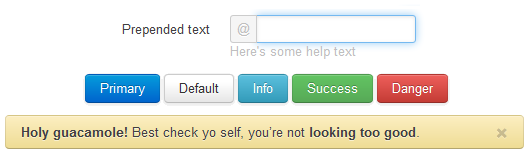
    Another cool thing on Bootstrap is the gloom effect on input fields. Let’s see it:


    And how you add this effect? You already did when declaring the use of Bootstrap. But you can customize it by just adding a class to the input field:

    Missing code here during a blog migration

    There is also a fork of the project on GitHub, adding a few more options to personalize the input fields. You may want to give a look.

    Improving Usability

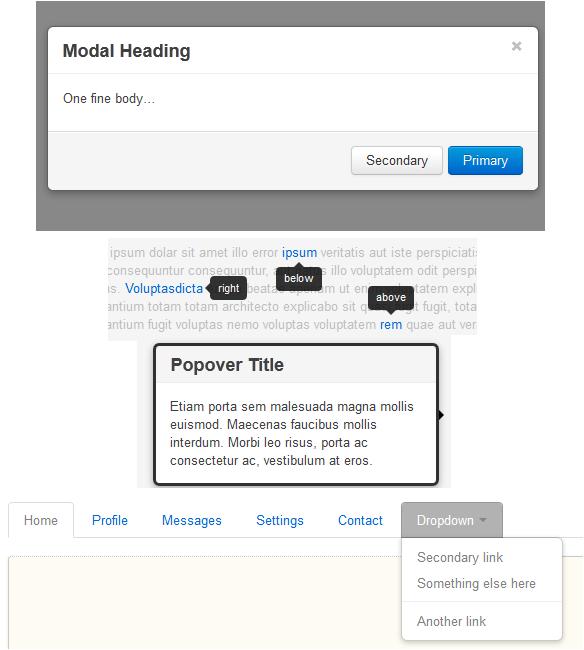
    Bootstrap also gives some JavaScript codes that can help you add some common behaviors in web pages these days. It is based on JQuery plugins, so if you already know JQuery, you will have no trouble with it.


    Well, this is just a cool project that I’ve found, and I thought it was veeeery interesting. I believe you too. I could develop some demo, but the Bootstrap page itself is very complete and self-explanatory, so I just took some images to illustrate what Bootstrap is capable of. But if you know other projects such as this one, please leave a comment.

    UPDATE: recently, I discovered a similar project called Fbootstrapp, which can be used to develop Facebook apps with the Facebook look-and-feel.

  • How to (NOT) put holes in your application: SQL injections

    Hi,

    I was asked at work to give some help to a colleague about SQL injections. He doesn’t know too much about the topic, so I wrote him a mail introducing the problem. This post is a little more than that mail has.

    Note: this is an introduction to SQL injections, not an “all you need to know”. Use it to introduce yourself to the problem and learn how to avoid the most common mistakes. But don’t believe that it will solve all your security problems. This book covers a lot of points of SQL injections and ways to avoid it. And this other book covers several other points on securing your website.

    Who invented SQL injections?

    I like the “learn by example” method. So let’s start with one. Suppose you are the newest employee at Google. Your first task is to rewrite the login page for the Google products because it has low performance on the server side. (Off course, things at Google should not go the way I’ll describe here. It’s just an example.)

    Remembering, this is the page you will deal with:

    You open the current version, see lots of stuff and you don’t understand why so much code for a simple task such as find the user on a table. Then, you delete everything and start from scratch.

    Suppose that you need to code in Java, in one of those web frameworks. You start by creating a code like this:

    String username = getParameter("username");
    String password = getParameter("password");
    String sql = "select * from users where username = '" + username +
        "' and password = '" + password + "'";
    // the code that runs the query here...
    

    Saving the password’s has is itself a topic for another post, so let’s assume that the password is stored as plain text. Now you start to test. You fill the login form as follows:

    Your code will create and execute the following SQL:

    "select * from users where username = 'testuser' and password = 'testpass'"

    Day 1, 1:30pm: you make several tests to ensure that the page just let pass users with the correct username and password.
    Day 1, 3:00pm: your code is working and running very fast, due to its simplicity. You submit it to the repository.
    Day 1, 4:30pm: another employee picks up your code from the repository, and generates a new package. And then sends it to production.
    Day 1, 10:00pm: one automatic job picks the package with your code and releases to the public.
    Day 2, 11:00am: several tech blogs writing news about security issues in the Google login.
    Day 2, 2:00pm: you are screwed.

    “Help-me!! I don’t know what I did wrong!!”

    Hackers are everywhere and some of then use Google. And some of those hate Google’s new design. One of them has filled the login form as follows:

    How strange is this username… Let’s see the generated SQL query.

    "select * from users where
        username = 'somegoogleusername' -- ' and password = 'thepassdontmatter'"

    Did you get the SQL injection?

    The way that you’ve built the SQL combined with the values that the malicious user filled on the forms resulted in a query that has nothing to do with selecting one specific user from the database and checking his password. On the first point, it is searching for the username somegoogleusername. Remember that the -- in several SQL dialects means the same as // in most common programming languages: a comment until the next line break. The comment on the SQL forces an “ignore the password comparison” behavior. Resuming, the malicious user gained access to somegoogleusername account. If this is bad, imagine someone filling the username '; drop table users;--.

    So, what should I do?

    Please, don’t think about using complex table names or change the order of parameters in the SQL. This will just make the hacker’s job approximately 0.75% trickier.

    First, what you should never do again: build a SQL with parameters by just concatenating strings. You still could use this approach if you remember to escape special characters on the parameter values. But this way is error prone, as is easy to forget to escape one parameter. Also, your code will be a lot harder to read and maintain latter. MySql with PHP lets you do this through the mysql_real_escape_string() function.

    Now I’ll show you a more interesting solution. Good APIs to manage your database through code provide some ways to insert parameters in a SQL query.

    The way that I like most is the “named parameters” approach. You will write the query using some placeholders for the parameters, and these parameters will be provided at the time of the execution of the query. Hibernate support this in the following way:

    String sql = "select * from users where username = :pusername "+
        " and password = :ppassword ";
    Map params = new Map();
    params.put( "pusername", getParameter("username") );
    params.put( "ppassword", getParameter("password") );
    // the code that runs the query here...

    One other way is “positional parameters”, which uses a question mark (?) instead of a name preceded by a colon (:). I don’t like this one because if you rewrite the query and change the position of the parameters, you need to change the order of the values in the list you pass to the API (yes, I’m lazy). But you still can use this if you like. The Java JDBC API provides the PreparedStatement for this.

    And there are other ways to do this. The Grails framework supports the “criteria” way to write SQL queries: you write the SQL code in Groovy, and the framework takes care to build the SQL string for you.

    I believe that these two are the most common among several languages/programming APIs. But there are others for specific frameworks.

    I hope this helps you understand SQL injections. If you have any doubt about the topic, please let me know. If you already know about the topic, leave your thoughts about it on the comments.

  • NinePatches, backgrounds, paddings, relayouts and some headache

    Hi,

    A few days ago I got stuck into a so called “bug”. A developed a small NinePatch to use in an Android app. I wanted it to highlight a ViewGroup object, and then remove the background later. But the first time I set the NinePatch, the view appears to move a little bit. Weird!

    Let’s start from the beginning: what is a NinePatch?

    It is a special image file. In the Android SDK, it is a file with the extension .9.png that you can open in any image editor. What makes it special is a border around the image that has a special meaning for the Android system. If you ask to draw this image with a different size than its width*height dimensions, the image will stretch only in some pre-defined areas and the others will keep their original size. Why you would use this?? A practical way to explain this is to show you a NinePatch in use:

    There is a NinePatch on the left (with a lot of zoom, and a yellow line to the actual NinePatch dimensions). On the right, two buttons with different dimensions. You got it? The NinePatch is very stretched on the big button, but still look very good! There is a lot of material explaining how to get this effect on the web. I recommend you the official Android SDK for this (which also is the source of the image with the buttons, modified by me). The Android SDK also have a very simple tool that let’s you generate these NinePatches.

    The Symptom

    So far, so good, the NinePatch works pretty well. Until you put it behind a view as its background. What happens? Let’s see.

    After I set the NinePatch as the background of the FrameLayout root_layout, the text is moved some pixels down (I drew a blue line so you can see that it moved exactly 4 pixels). Not too much, but it should move 0 pixels, no more, no less!

    The Research for the Cure of the Headache

    Well, actually the “bug” is not a “bug”, but a feature! After researching the Android source a little bit, I understood that the optional padding that you should set in the NinePatch also gets into account when you set the ViewGroup’s background. Let’s look at the source of the method View.setBackgroundDrawable(Drawable d).

    public void setBackgroundDrawable(Drawable d) {
        //some other code
        if (d != null) {
            Rect padding = sThreadLocal.get();
            //more intermediate code
            if (d.getPadding(padding)) {
                setPadding(padding.left, padding.top, 
                    padding.right, padding.bottom);
            }
            //more code
        }
        //and the finishing code
    }
    

    The Medicine

    As you can see, the view literally gets the padding that you set into the NinePatch and sets onto the view, changing its dimension. That is why you set the background and the view changes its position. If you do not set the optional padding, the padding of the NinePatch will be computed from the stretchable area, and will mess with your beautiful layout.

    Optionally, you can get the padding before set the background, set your custom background, and then set the old padding. Example:

    //backup the old padding
    Rect padding = new Rect();
    padding.left = rootLayout.getLeft();
    padding.top = rootLayout.getTop();
    padding.right = rootLayout.getRight();
    padding.bottom = rootLayout.getPaddingBottom();
    //set the new background
    rootLayout.setBackgroundResource(R.drawable.nine_patch);
    //restore the old padding
    rootLayout.setPadding(padding.left, padding.top, 
        padding.right, padding.bottom);
    

    This one is not as good as just set the padding on the NinePatch, as you need to run some extra code every time you set a background onto a view. But this hack may let you do something that I did not though of yet ツ

    The Side-Effects

    Finally, I want to show you a side effect of using a NinePatch. Let’s go back to the Android source code:

    public void setBackgroundDrawable(Drawable d) {
        boolean requestLayout = false;
        //some initial code
        if (d != null) {
            // some other code, including the one presented above
            if (mBGDrawable == null || 
                    mBGDrawable.getMinimumHeight() != d.getMinimumHeight() ||
                    mBGDrawable.getMinimumWidth() != d.getMinimumWidth()) {
                requestLayout = true;
            }
            // more code
        }
        // pre-requestLayout code
        if (requestLayout) {
            requestLayout();
        }
        //finishing code
    }

    As you can see, if the previous background has different minimum width or height from the new one, the method will force a requestLayout() call. This is ok if you set the background during the application initialization. But if you start to swap your view’s background, then you need to take care of these properties too. If not, your application may suffer from “hiccups” from the re-layout of your views.

    Finishing, this is the source code that I developed for this post. It contains the “Hello World” example you saw above. If you click on the text, the background is added, so you can see for yourself this Android feature.

  • The DCEL data structure: a C++ implementation

    Hi,

    When working with computer graphics, it’s very common to deal with discrete surfaces (for example, triangle meshes). The simplest approach is to store a triangle mesh as a list of vertices and the indices that define the triangles, and it is very efficient if you just need to draw the scene. But it doesn’t work very well if you need to answer advanced queries, such as what are the edges that start on a given vertex or what are the neighbor faces of one given face

    During my master thesis I needed to answer such queries. And I found that the DCEL Data Structure would be perfect for my case. But I didn’t like the implementations that I found. For example, this one couples too much the DCEL implementation with the data that I need to store within the DCEL. And this one is a powerfully monster that should do everything I need, but only after tame de monster.

    I decided to write my own DCEL. I tried to keep it simple to understand, but complete enough to do all the things that I need. Basically, the vertices, edges and faces in my DCEL are containers. I also implemented a mesh template that receives the types that you want to put inside these objects. Finally, the mesh has lots of helper methods that very simple to use to manipulate the DCEL in the most common cases. I tried to keep its use in the same way that you would use a std::list.

    But what is this DCEL I don’t stop talking about?

    The Doubly-Connected Edge List is a data structure to store the topological structure (i.e. the relation between faces, edges and vertices) of a surface. It doesn’t solve every problem on earth, but is heavily used in algorithms that deal with surface operations. I will not go deep into how it works, but I will try to scratch its surface. It works like a double-linked list.

    A DCEL is a set of faces, half-edges and vertices. Yes, an edge divided by two. A pair of half-edges forms an edge, and they are called twins. So, each half-edge has a pointer to its twin half-edge, in order to reconstruct the whole edge. But why divide an edge by two? Each half edge is associated to one face on one side of the edge, and one vertex on one end of the edge. In other words, a half-edge has a face pointer and an origin pointer. And where is the “doubly-connected” thing? Each half-edge has a next pointer and a previous pointer. The contour of a face is defined by a sequence of half-edges linked by their next and previous pointers. Finally, a face has the boundary pointer which points to one half-edge on its contour. And the vertex has an incident pointer that points to one half-edge that starts on that vertex.

    But why this data structure is so interesting? If you inspect it carefully, you will see that everything is connected to everything in a very organized way. From one face, you can walk through his contour by following the next (or previous) pointers of its boundary. From one half-edge, you can access one vertex through the origin pointer and the other vertex following its twin->origin pointers. In the same way, from a half-edge you can access the face on which it is part of the contour (by its face pointer), and the other face by its twin half-edge (twin->face pointer).

    As you can see, it is easy to answer the questions from the beginning of the post. What are the edges that start on a given vertex? Pick the vertex. The first half-edge is in its incident pointer. Call it current. For the next half-edge, pick the previous->twin half-edge of the current half-edge (and call this new one the new current). Keep getting these previous->twin pointers until you reach the first half-edge, and you did it!!! What are the neighbor faces of one given face? This one I left as exercise ツ

    If you want to dive in the DCEL data structure, I recommend you this page. Or this book.

    Building a DCEL using templates

    From now on, I’ll assume that you are an expert on DCEL, and I’ll focus on the DCEL implementation. Let’s start by creating a template for the three main objects: FaceT, HalfEdgeT and VertexT (don’t worry about the “T” in the names. It will “disappear” latter). These templates will hold the objects that the face, vertex and half-edge should hold as an internal data pointer. I could put a void* on these objects, but this way the object and the data associated will be in the same region of the memory (thus, improving cache hit). Also, it still allows you to use a pointer to any type want.

    template
    class FaceT {
    public:
        inline FaceDataT& getData() {
            return data;
        };
    private:
        FaceDataT data;
    };
    
    template
    class HalfEdgeT {
    public:
        inline HalfEdgeDataT& getData() {
            return data;
        };
    private:
        HalfEdgeDataT data;
    };
    
    template
    class VertexT {
    public:
        inline VertexDataT& getData() {
            return data;
        };
    private:
        VertexDataT data;
    };

    Now, let’s fill the pointers between the objects. Before we add the pointers itself, I need to create forward declarations for the templates.

    template
    class FaceT;
    
    template
    class HalfEdgeT;
    
    template
    class VertexT;
    
    template
    class FaceT {
        typedef HalfEdgeT HalfEdge;
        typedef FaceT Face;
    public:
        //getters and setters, with an inline tip to the compiler =)
    private:
        HalfEdge* boundary;
        FaceDataT data;
    };
    
    template
    class HalfEdgeT {
        typedef VertexT Vertex;
        typedef HalfEdgeT HalfEdge;
        typedef FaceT Face;
    public:
        inline void setTwin(HalfEdge* newTwin) {
            this->twin = newTwin;
            newTwin->twin = this;
        };
        inline void setNext(HalfEdge* newNext) {
            this->next = newNext;
            newNext->prev = this;
        };
        inline void setPrev(HalfEdge* newPrev) {
            this->prev = newPrev;
            newPrev->next = this;
        };
        // all the other getters and setters as usual
    private:
        HalfEdge* twin;
        HalfEdge* next;
        HalfEdge* prev;
        Vertex* origin;
        Face* face;
        HalfEdgeDataT data;
    };
    
    template
    class VertexT {
        typedef VertexT Vertex;
        typedef HalfEdgeT HalfEdge;
    public:
        //all the getters and setters as usual
    protected:
    private:
        HalfEdge* incidentEdge;
        VertexDataT data;
    };

    Finally, let’s create the Mesh holder to keep all these objects. It will receive as template parameter all the three data types that the other objects will hold. Also, is here that the “T” from the VertexT, …, will disappear.

    template
    class Mesh {
        typedef Mesh MeshT;
    public:
        typedef VertexT Vertex;
        typedef HalfEdgeT HalfEdge;
        typedef FaceT Face;
    
        typedef VertexDataT VertexData;
        typedef HalfEdgeDataT HalfEdgeData;
        typedef FaceDataT FaceData;
    
        // Several helper methods to deal with these objects.
        // Also, the getters and setters.
    
    private:
        std::vector vertices;
        std::vector faces;
        std::vector edges;
    };

    Voilá!!! But this is everything? No.

    The basis of my DCEL implementation is here. But over it, I’ve implemented several other helper methods to deal with the DCEL. It was designed to deal with faces of any shape, such as triangles, squares or megagons. But triangles are so common and used in computer graphics that I developed only the method that creates triangular faces on it. So, instead of creating the vertices, faces and edges and link everything together, you can just create the vertices and call an createTriangularFace() method on the Mesh class that the needed faces and half-edges are created and linked for you.

    I also developed some helper classes. One is an EdgeIterator. If it receives a Face pointer in the constructor, it will iterate over the half-edges of the contour of that face. And if it receives a Vertex pointer, it will iterate over the half-edges that starts on that vertex. Also I developed two loaders for it, which can load common .OBJ files and some .PLY files (through this library). Finally, I developed methods to load and save DCEL structures into files, which is able to deal with the DCEL structure and the data stored in it.

    You can download the entire source files here, or download/branch it on my GitHub account. The projectcontains all the headers and .cpp files for this DCEL. It also contains the main.cpp, which has some examples of how to use it. The code works on the Visual Studio 2008 and 2010. And if you have any doubt or suggestion, please leave a comment bellow ツ

  • Android SDK: Using the Scroller object to create a page flip interaction

    This weekend I decided to play with the Android SDK. I decided to implement an app that uses the basic sweep gesture: you can touch the buttons, but you can drag to change the current page smoothly, or use a gesture to flip between views. The one from the Home screen of most Androids phones and iPhones. There are several solutions on the net, but I thought that it will be great if I developed one on my own. And it was ツ

    So, this is my solution, the PageFlipper class. I extended the ViewGroup, so each child you add to my class will be a page on the final view. I use the onInterceptTouchEvent method to check if the user wants to drag/flip the screen or just want to click on a button on it. If I understand the user’s intent to change the page, the method returns true, and the motion of the screen is divided between the onTouchEvent and the computeScroll methods.

    My solution uses a very simple State Machine. Take a look at it. I will explain the code based on it.

    1) Firstly, the user touches the screen. In the onInterceptTouchEvent, I capture the initial coordinates of the touch, and changes to the state ST_WAITING. The VelocityTracker is initialized here to compute the velocity that the user moves his finger on the screen. Note that I return false from here because I want to watch the MotionEvent, but I still want to let the target child receive the event.

    if (action == MotionEvent.ACTION_DOWN && getState() == ST_IDLE) {
        if (mVTracker != null) {
            mVTracker.recycle();
        }
        mVTracker = VelocityTracker.obtain();
        mVTracker.addMovement(event);
        setState(ST_WATCHING);
        mLastX = mFirstX = (int) event.getX();
        mFirstY = (int) event.getY();
        return false;
    }

    2) The user leaves his finger from the screen. Just go back to the ST_IDLE state, and releases the VelocityTracker object.

    if (action == MotionEvent.ACTION_UP || 
            action == MotionEvent.ACTION_CANCEL) {
        setState(ST_IDLE);
        mVTracker.recycle();
        mVTracker = null;
    }
    return false;

    3) Now the things are getting interesting. The user’s finger moved slowly across the screen. What we do here is check if he moved long enough on the horizontal axis to assume that the screen should be moved. If it is true, changes to the ST_DRAGGING state. By returning true here, the current and the next MotionEvents will be delivered direct to the onTouchEvent of my class. The ST_IGNORING is just to avoid interaction with the PageFlipper while the user is interacting with, let’s say, a list in one of the pages.

    if (action == MotionEvent.ACTION_MOVE && getState() == ST_WATCHING) {
        int deltaX = Math.abs(mFirstX - (int) event.getX());
        int deltaY = Math.abs(mFirstY - (int) event.getY());
        if (deltaX > mTouchSlop && deltaY < mTouchSlop) {
            setState(ST_DRAGGING);
            return true;
        }
        if (deltaX < mTouchSlop && deltaY > mTouchSlop) {
            setState(ST_IGNORING);
            return false;
        }
    }

    4) While the user is moving his finger on the screen, I scroll the view. Doing this way the user can actually drag the views on the screen.

    if (getState() == ST_DRAGGING && action == MotionEvent.ACTION_MOVE) {
        int deltaX = mLastX - (int) event.getX();
        scrollBy(deltaX, 0);
        mLastX = (int) event.getX();
    }

    5 and 6) When the user stops touching the screen, the state changes to ST_ANIMATING. Here are several things to do. First, I use the VelocityTracker to compute the speed that the user moved his finger. If it is greater than a minimum speed, the animation will scroll the view to the next child on the left or right. If the user moved his finger slowly, but for more than 50% of the screen, it is moved to the left or right too. If not, then move the view to the correct position back again.

    if (getState() == ST_DRAGGING && (action == MotionEvent.ACTION_UP
            || action == MotionEvent.ACTION_CANCEL)) {
        setState(ST_ANIMATING);
        mVTracker.computeCurrentVelocity(1000);
        float velocity = mVTracker.getXVelocity();
        final int width = getWidth();
        final int delta = mLastX - mFirstX;
        final boolean fling = Math.abs(velocity) > mFlingSlop;
        final boolean moveToNextScreen = Math.abs(delta) > (width / 2);
        if (fling || moveToNextScreen) {
            int motion = (delta > 0 ? -1 : 1) * (width - Math.abs(delta));
            mScroller.startScroll(getScrollX(), getScrollY(), motion, 0);
        } else {
            mScroller.startScroll(getScrollX(), getScrollY(), delta,  0);
        }
        invalidate();
        mLastX = mFirstX = mFirstY = -1;
        mVTracker.recycle();
        mVTracker = null;
    }

    Note that I call the invalidate() method on the end. This will force the view to redraw itself. But before that, the SDK will call the computeScroll() method, which is the key to animate the scroll of our view. Note that the methods scrollTo() and scrollBy() just move the view at once to the specified position. So, the Scroller object will help us to move just a little bit at a time, to give the feeling of an animation.

    7 and 8) Finishing the main code, our computeScroll() will be called after the call to invalidate() that we did before. The computeScrollOffset() method will return true until the scroll has been completed. So we move a little bit again the view, and call invalidate() again. When the scroller is finished, go back to the state ST_IDLE.

    public void computeScroll() {
        if (mScroller.computeScrollOffset()) {
            scrollTo(mScroller.getCurrX(), mScroller.getCurrY());
            invalidate();
        } else {
            if (getState() == ST_ANIMATING && mScroller.isFinished())
                setState(ST_IDLE);
            super.computeScroll();
        }
    }

    There are some points that I didn’t solved in this code. One is that the view gets lost if you try to sweep to the left of the first view or the right of the last view. Also, if you add a child view that doesn’t receive touchEvents (such as a TextView), the MotionEvents are not working as I would expect. You need to call setClickable(true) in these cases.

    Please, download the full source code of the PageFlipper class and an running example. I hope that you can use it for your projects. And, if you use it or find a bug, please leave a comment bellow ツ

  • Going to the supermarket

    A few months ago, I developed with some friends at UFRGS a solution for the 3DUI Grand Prix. In a few words, it was a contest to see who develop the best solution to interacting with a virtual market.

    For now, I’ll just share the code, the paper and some other stuff about this work. So, please fell free to download the article and the source code. Below, you can see some images and a video of it running.

    Highslide JS